
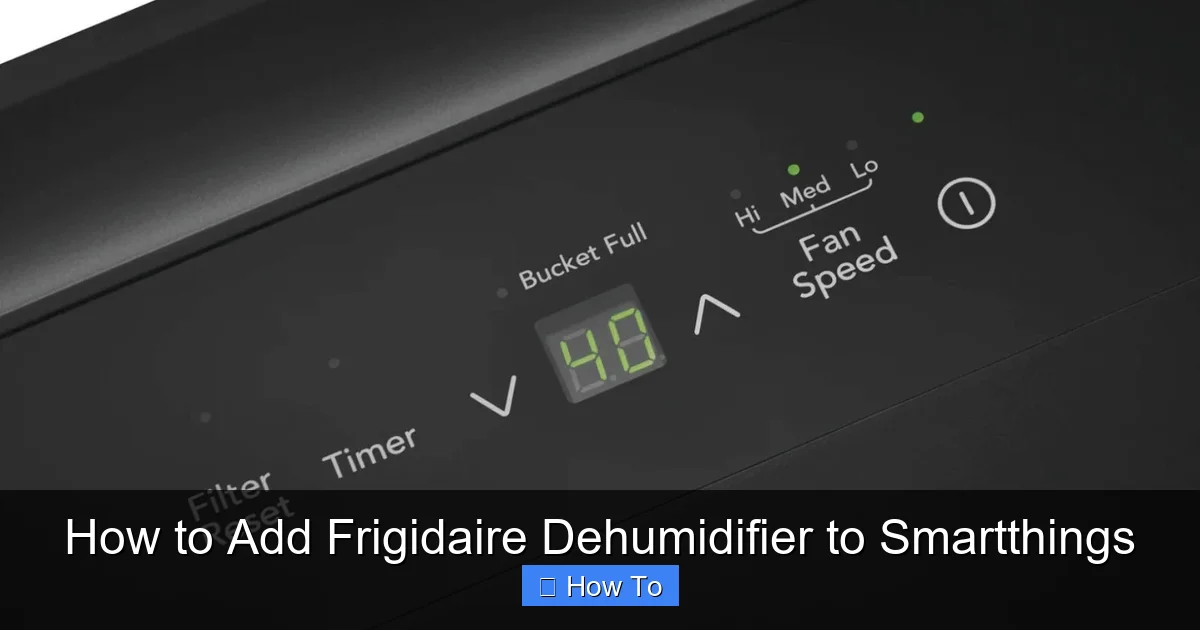
Discover how to seamlessly integrate your Frigidaire dehumidifier with Samsung SmartThings for smart home control. This guide walks you through setup, automation, and troubleshooting to help you manage indoor humidity from anywhere using your smartphone or voice assistant.
Quick Answers to Common Questions
Can I add any Frigidaire dehumidifier to SmartThings?
No, only Wi-Fi-enabled models that support the Frigidaire Smart Appliances app can be integrated with SmartThings. Check your model number and features before proceeding.
Do I need a Samsung account for SmartThings?
Yes, a Samsung account is required to use the SmartThings app and link third-party devices like your Frigidaire dehumidifier.
Can I control the dehumidifier when I’m away from home?
Yes, once connected to SmartThings and linked to the cloud, you can control your dehumidifier remotely from anywhere with an internet connection.
Will automations work if my phone is off?
Yes, automations run on the SmartThings cloud, so they’ll trigger based on conditions even if your phone is powered off or out of range.
Can I use multiple dehumidifiers with SmartThings?
Absolutely. You can add and manage multiple Frigidaire dehumidifiers, each with custom names, rooms, and automations.
How to Add Frigidaire Dehumidifier to SmartThings
If you’re looking to upgrade your home’s comfort and efficiency, integrating your Frigidaire dehumidifier with Samsung SmartThings is a smart move. Not only does it let you monitor and control indoor humidity remotely, but it also opens the door to automation, energy savings, and voice control. Whether you’re battling damp basements, musty odors, or high humidity in your living space, having your dehumidifier connected to SmartThings gives you powerful tools to maintain a healthy, comfortable environment.
In this comprehensive guide, you’ll learn exactly how to add your Frigidaire dehumidifier to SmartThings—step by step. We’ll cover compatibility checks, app setup, account linking, device discovery, automation creation, and troubleshooting common issues. By the end, you’ll be able to control your dehumidifier from your phone, set up smart routines, and even use voice commands to manage humidity levels.
Let’s get started!
Why Connect Your Frigidaire Dehumidifier to SmartThings?

Visual guide about How to Add Frigidaire Dehumidifier to Smartthings
Image source: res.cloudinary.com
Before diving into the technical steps, it’s helpful to understand the benefits of connecting your dehumidifier to a smart home platform like SmartThings.
First, remote control is a game-changer. Instead of manually adjusting settings on the unit, you can check humidity levels and turn the dehumidifier on or off from anywhere using your smartphone. This is especially useful if you’re away from home and want to prevent mold growth or musty smells.
Second, automation allows your dehumidifier to respond to real-time conditions. For example, you can set it to turn on automatically when humidity rises above a certain threshold—say, 60%—and turn off when it drops to 50%. This not only improves air quality but also saves energy by avoiding unnecessary runtime.
Third, integration with other smart devices enhances your whole-home experience. Imagine your dehumidifier working in sync with your smart thermostat, air purifier, or even window sensors. If a window is left open during a humid day, SmartThings can detect the change and trigger the dehumidifier to compensate.
Finally, voice control adds convenience. Once your dehumidifier is part of SmartThings, you can use Google Assistant or Amazon Alexa to say things like, “Hey Google, turn on the dehumidifier in the basement,” without lifting a finger.
Check Compatibility: Is Your Frigidaire Dehumidifier Smart-Enabled?
Not all Frigidaire dehumidifiers can connect to SmartThings. Only models with built-in Wi-Fi and support for the Frigidaire Smart Appliances app are compatible. Here’s how to verify yours is ready for integration.
Look for Wi-Fi and App Support
Check the product label or user manual for terms like “Wi-Fi enabled,” “Smart Appliance,” or “Frigidaire app compatible.” Most modern Frigidaire dehumidifiers in the “Smart” or “Connected” series support this feature. Common models include:
– Frigidaire FFAD7033R1 (70-pint, Wi-Fi enabled)
– Frigidaire FFAD5033R1 (50-pint, Wi-Fi enabled)
– Frigidaire FGAC7044U1 (70-pint, with app control)
If your model number includes “Wi-Fi” or “Smart” in the name, it’s likely compatible.
Download the Frigidaire App
Even though you’re connecting to SmartThings, you’ll first need to set up your dehumidifier using the official Frigidaire app. This app acts as the bridge between your appliance and SmartThings.
Go to the Apple App Store or Google Play Store and search for “Frigidaire Smart Appliances.” Download and install the app on your smartphone or tablet.
Create a Frigidaire Account
Open the app and sign up for a free account using your email address. This account will be used to link your dehumidifier to both the Frigidaire cloud and, later, SmartThings.
Make sure to verify your email and enable notifications so you can receive alerts about filter changes, full tanks, or connectivity issues.
Set Up Your Frigidaire Dehumidifier with the Frigidaire App
Before connecting to SmartThings, your dehumidifier must be properly configured and connected to your home Wi-Fi network via the Frigidaire app.
Power On and Prepare the Unit
Plug in your dehumidifier and turn it on using the power button. Make sure it’s in a location with strong Wi-Fi signal—ideally within 30 feet of your router.
Enable Wi-Fi Mode
On the dehumidifier’s control panel, press and hold the “Wi-Fi” or “Connect” button (usually indicated by a Wi-Fi symbol) for 3–5 seconds until the indicator light starts blinking. This puts the unit into pairing mode.
Connect via the Frigidaire App
Open the Frigidaire app and tap “Add Device” or the “+” icon. Follow the on-screen prompts to select your dehumidifier model.
The app will search for nearby devices. When your dehumidifier appears, tap it to begin setup.
Join Your Home Wi-Fi Network
The app will ask you to select your home Wi-Fi network and enter the password. Make sure you’re connected to the same network on your phone.
Wait for the app to confirm successful connection. The dehumidifier’s Wi-Fi light should turn solid, indicating it’s online.
Test Basic Functions
Use the app to turn the dehumidifier on and off, adjust humidity settings, and check the current room humidity. This confirms the device is working properly before moving to SmartThings.
Install and Set Up the SmartThings App
Now that your dehumidifier is connected to the Frigidaire app, it’s time to bring it into the SmartThings ecosystem.
Download the SmartThings App
If you haven’t already, download the Samsung SmartThings app from the App Store or Google Play. It’s free and works on both iOS and Android.
Create or Sign In to Your SmartThings Account
Open the app and sign in with your Samsung account. If you don’t have one, create a new account using your email. This account will manage all your smart devices.
Set Up Your Location
The app will prompt you to add a location (e.g., “Home”). Name it and confirm your time zone and address. This helps with location-based automations.
Link Frigidaire to SmartThings via Integration
SmartThings doesn’t directly discover Frigidaire dehumidifiers. Instead, you must link the two platforms using the Frigidaire Smart Appliances integration.
Open SmartThings and Go to Integrations
In the SmartThings app, tap the “Devices” tab, then tap the “+” icon to add a new device.
Select “By brand” and search for “Frigidaire.”
Choose Frigidaire Smart Appliances
Tap on “Frigidaire Smart Appliances” from the list of available integrations.
Sign In to Your Frigidaire Account
You’ll be redirected to a login screen. Enter the same email and password you used for the Frigidaire app.
Grant SmartThings permission to access your Frigidaire devices. This allows the platforms to communicate.
Discover Your Dehumidifier
SmartThings will scan your Frigidaire account for connected appliances. Your dehumidifier should appear in the list.
Tap on it to add it to SmartThings. The app will assign it to your home location and give it a default name like “Frigidaire Dehumidifier.”
Customize the Device Name and Room
Tap on the device to open its settings. Rename it to something more descriptive, like “Basement Dehumidifier” or “Master Bedroom Dehumidifier.”
Assign it to the correct room (e.g., Basement, Laundry Room) for better organization.
Test Your Dehumidifier in SmartThings
Now that your dehumidifier is added, it’s time to test its functionality within SmartThings.
Control the Device
Open the SmartThings app and navigate to your dehumidifier. You should see options to:
– Turn it on or off
– Adjust the target humidity level (e.g., 50%, 55%)
– View current humidity and temperature
– Check water tank status (if supported)
Try turning it on and off remotely. Confirm the changes reflect on the physical unit.
Check Status Updates
The app should display real-time data, such as current humidity and whether the unit is running. If the data is outdated or missing, check your Wi-Fi connection and re-sync the device.
Create Automations and Routines
One of the biggest advantages of SmartThings is automation. Here’s how to set up smart routines for your dehumidifier.
Set Up a Humidity-Based Automation
Go to the “Automations” tab in SmartThings and tap “+” to create a new routine.
Name it “Dehumidify When Humid.”
Set the trigger: “When humidity is above 60%.”
Add an action: “Turn on Basement Dehumidifier.”
Set a second action: “When humidity drops below 50%, turn off dehumidifier.”
Save the routine. Now your dehumidifier will run only when needed.
Schedule Daily Operation
Create a time-based routine to run the dehumidifier during peak humidity hours.
Example: “Every day at 2:00 PM, turn on dehumidifier. Turn off at 6:00 PM.”
This is useful for basements or laundry rooms that get damp in the afternoon.
Integrate with Other Devices
Combine your dehumidifier with other smart devices.
Example: “When the basement window opens, turn on dehumidifier.”
Or: “When the air purifier turns on, also turn on dehumidifier.”
These multi-device automations create a smarter, more responsive home.
Enable Voice Control with Google Assistant or Alexa
Once your dehumidifier is in SmartThings, you can control it with voice commands.
Link SmartThings to Google Assistant
Open the Google Home app, go to “Devices,” and tap “+” to add a service.
Search for “SmartThings” and link your Samsung account.
Say, “Hey Google, sync my devices.”
Now you can say, “Hey Google, turn on the basement dehumidifier.”
Link SmartThings to Alexa
Open the Alexa app, go to “Skills & Games,” and search for “SmartThings.”
Enable the skill and log in with your Samsung account.
Say, “Alexa, discover devices.”
Then say, “Alexa, turn on the dehumidifier.”
Troubleshooting Common Issues
Even with careful setup, you might encounter problems. Here’s how to fix the most common ones.
Dehumidifier Not Appearing in SmartThings
– Ensure your dehumidifier is connected to the Frigidaire app and online.
– Re-link your Frigidaire account in SmartThings.
– Restart both the dehumidifier and your router.
Delayed or Missing Status Updates
– Check Wi-Fi signal strength near the dehumidifier.
– Move the unit closer to the router or use a Wi-Fi extender.
– Reboot the dehumidifier by unplugging it for 30 seconds.
Automation Not Triggering
– Verify the humidity sensor is accurate (compare with a standalone hygrometer).
– Ensure the automation is enabled and conditions are met.
– Check for app updates for both SmartThings and Frigidaire.
Voice Commands Not Working
– Confirm SmartThings is linked to your voice assistant.
– Re-discover devices in Google Home or Alexa.
– Use the exact device name you set in SmartThings.
Tips for Optimal Performance
To get the most out of your smart dehumidifier, follow these best practices:
– Place the unit in a central location with good airflow.
– Clean the air filter monthly to maintain efficiency.
– Empty the water tank regularly or use a drain hose for continuous operation.
– Update the Frigidaire and SmartThings apps regularly for new features and bug fixes.
– Monitor energy usage in the SmartThings app to identify savings opportunities.
Conclusion
Adding your Frigidaire dehumidifier to SmartThings transforms a basic appliance into a smart, responsive part of your home ecosystem. With remote control, automation, and voice commands, you can maintain ideal humidity levels effortlessly—improving air quality, preventing mold, and saving energy.
By following this guide, you’ve learned how to check compatibility, set up the Frigidaire app, link accounts, add the device to SmartThings, create automations, and troubleshoot issues. Now you’re ready to enjoy a smarter, more comfortable home.
Whether you’re managing humidity in a basement, laundry room, or entire house, SmartThings gives you the tools to stay in control—no matter where you are.